The Bulletproof Client Handoff Framework
Protect your builds from human error. Here is how to keep clients from estroying your design.

Fix seven common website recording mistakes before posting: rushed scrolling, loading states, tiny details, distracting frames, and unclear presentation.
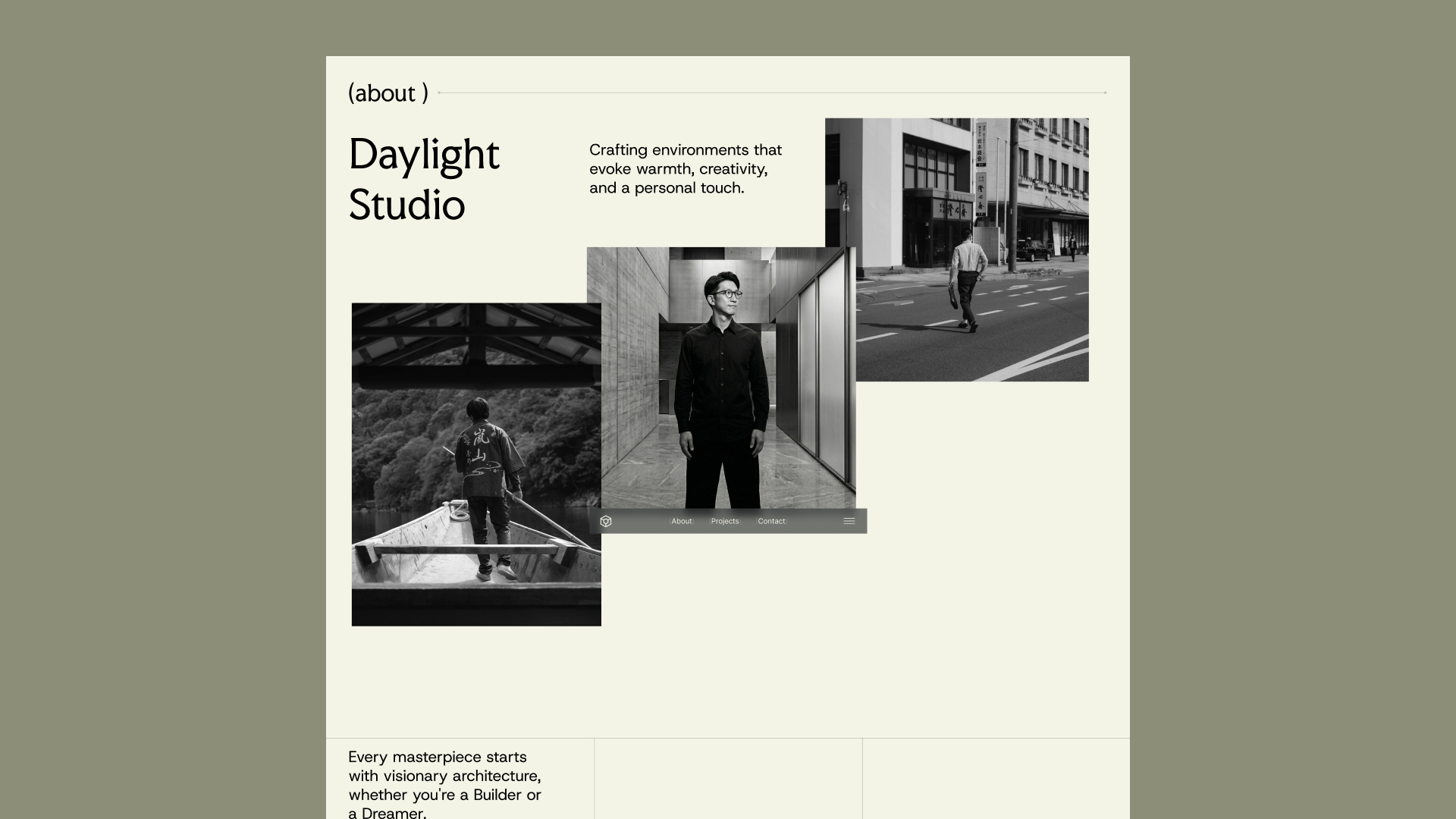
A good website screen recording gives viewers enough time and space to understand the design. Before sharing yours, check the captured page, movement, framing, and final export. A mockup can improve the presentation, but it cannot recover a detail that was never recorded clearly.
Use this seven-point review before uploading an MP4 to PreviewKit or presenting an automatic URL capture. The fixes begin with the source footage and finish with the exported post.
An empty image area or a shifting heading can make a finished website look unfinished in the recording. Watch for fonts, images, and content that appear after the initial page load.
Fix: Inspect the page and the captured footage before moving on. If an important section is missing or still loading in the recording, make a fresh capture once you have addressed the issue. For a manual recording, let the intended opening view settle before starting the movement.
You already know the website, so a fast scroll may feel easy to follow. Someone seeing it for the first time has to recognize the layout, find the main visual, and understand what changes next.
Fix: In a manual recording, use a deliberate movement through a small number of sections. Leave room to understand each one. Review automatic captures too, and use an uploaded MP4 if you need a specific pace that the capture does not provide.
A recording that visits every section can make the strongest part of the project easy to miss. A preview does not need to reproduce a complete browsing session.
Fix: Decide what the post is about before recording. If the subject is the gallery, focus on the gallery and enough surrounding design to give it context. Save the navigation or mobile layout for another post if each deserves a separate explanation.
A pointer moving without purpose, an open notification, or a banner covering the hero can pull attention away from the work. The issue is especially noticeable when the distracting element moves while the page remains still.
Fix: Prepare a clean view before a manual capture. Close unrelated overlays and keep pointer movement intentional. Review what was actually recorded instead of assuming it matches the page you intended to show.
A detailed scene can reduce the visible website to a small part of the final image. That may suit a mood-focused post, but it is less useful when the viewer needs to inspect typography or interface details.
Fix: Check the composition at phone viewing size. Choose a mockup with a larger visible screen area when the details are important. PreviewKit includes 34 device and website mockups; use the one that suits the recording. Read how to choose a website video mockup for examples.
A desktop recording remains a desktop recording when placed on a tall canvas. It does not show how navigation, text, and columns behave on the mobile site.
Fix: If your caption promises a mobile preview, record the actual mobile layout. If you are showing the desktop version in a vertical post, describe it that way and choose framing that preserves its main visual. Our Reels and TikTok preview guide explains the distinction.
The final file is what your audience sees. A good-looking editor view does not replace checking the opening frame, motion, readability, and ending in the downloaded video.
Fix: Watch the full MP4 before uploading it. Then inspect the destination app's posting preview. If a section is unclear, return to the source or composition while your editing session is still available.
In PreviewKit, upload your MP4 or paste a website URL for automatic capture. Choose a device or website mockup, customize the background where supported, select a social media size preset, and export an MP4. You can also export a PNG design.
PreviewKit's mockups are image-based scenes with the recording placed inside the screen area. They are not actual 3D models. Projects work locally and are not saved between sessions, so export before refreshing the page and keep your source file.
For help planning the whole post, read how to showcase a website on social media. When the recording is ready, create its presentation in PreviewKit.
Powerful, self-serve product and growth analytics to help you convert, engage.

Let's bring your vision to life with standout design and expert development. Reach out to start building something exceptional together!