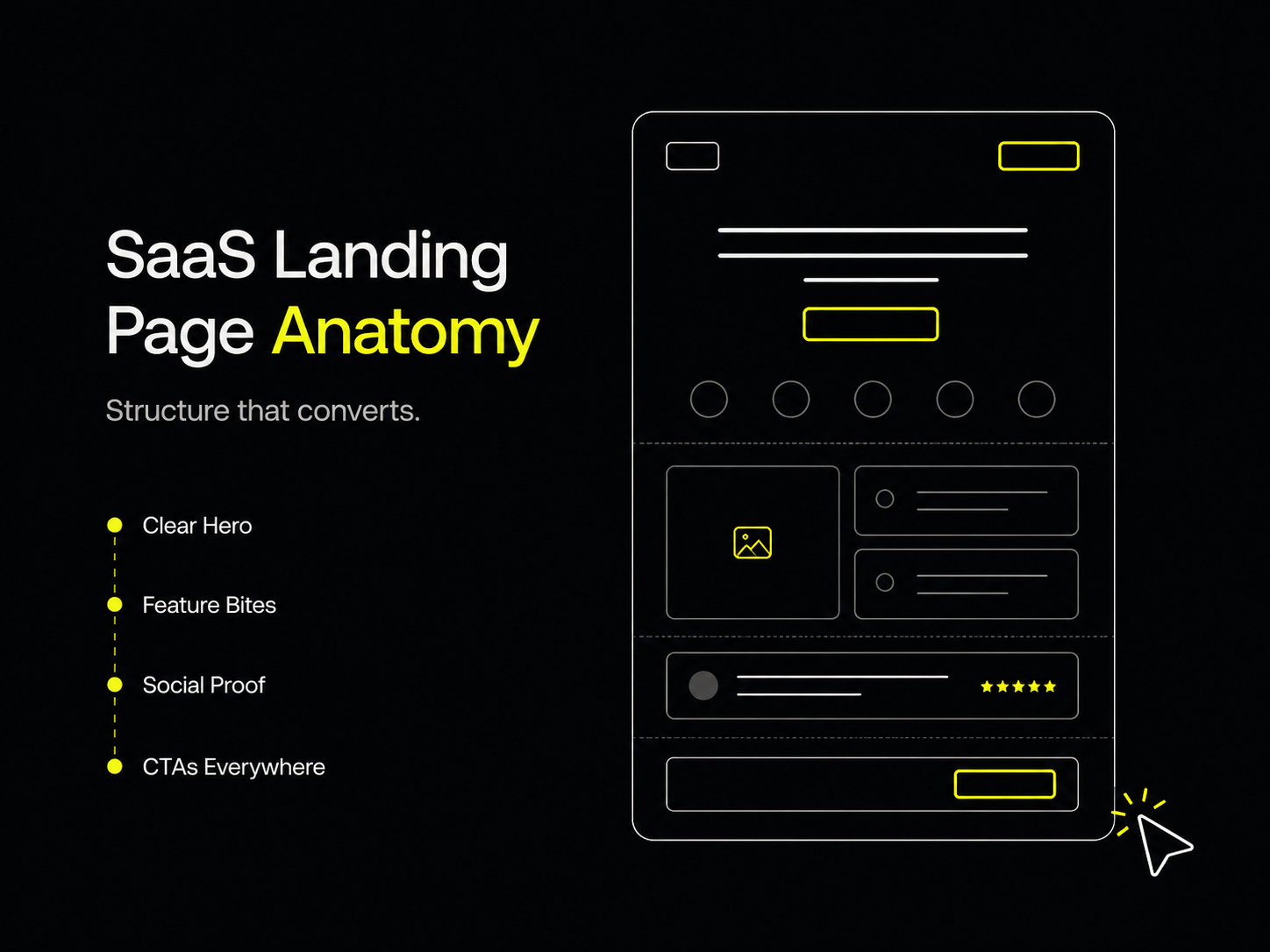
The Bulletproof Client Handoff Framework
Protect your builds from human error. Here is how to keep clients from estroying your design.

Learn how to put a website recording inside a visual mockup, choose a background that suits the design, and export an MP4 ready to share on social media.
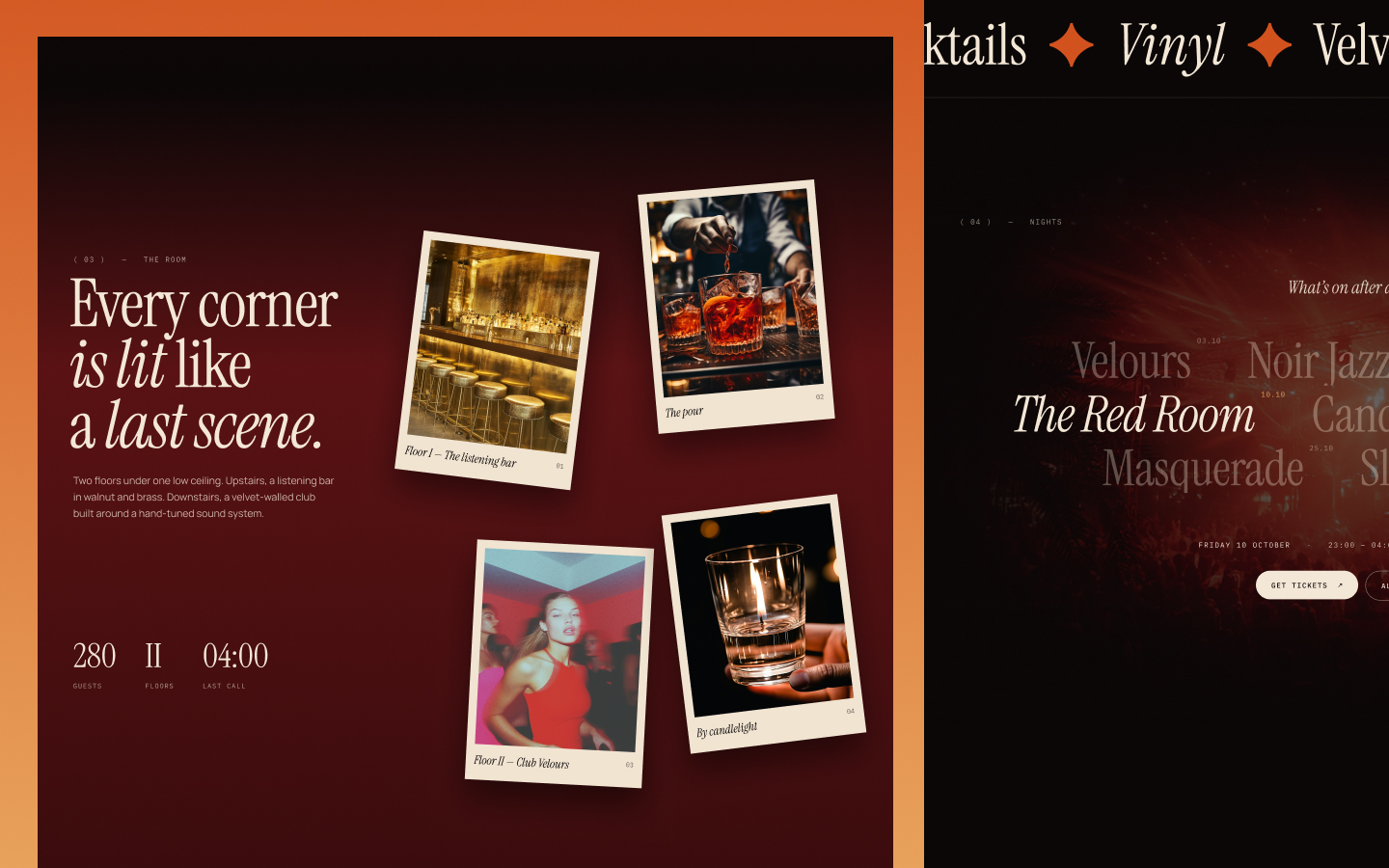
A website video mockup places a recording of your website inside a device or website frame. It gives the recording a presentation around it: a scene, a background, and a deliberate composition. In PreviewKit, you can upload an MP4 or capture a website from its URL, choose from 34 mockups, and export the result as an MP4.
The main decision is how much of the final image should belong to the website. A striking scene is useful only if people can still see the work you are sharing.
A raw recording shows the website and whatever else was captured with it. A mockup gives that footage a defined visual setting. The website can appear inside a device screen or a website frame, with a background that supports its colors and style.
That is especially useful when you want several project posts to feel consistent. You can use a similar approach to framing and background selection each time while allowing the website itself to change.
It does not make an unclear recording easier to follow by itself. If the footage scrolls too quickly or misses the section you want to show, improve the source first. Our recording checklist explains what to inspect.
Keep the current session open until you finish your exports. PreviewKit does not currently save editable projects between sessions, and refreshing the page loses the current project.
Choose a device scene when the overall impression matters. A homepage with large type and strong photography can remain recognizable inside a wider composition. The surrounding scene can help express the mood of the design.
Choose a simpler frame when the details matter. Dense navigation, compact cards, and small interface labels need room. A frame with less visual competition is a sensible starting point for that content.
As an illustrative example, imagine presenting the same portfolio recording twice. In the first version, the laptop occupies a small part of a large scene. In the second, the website occupies most of the composition. The first emphasizes atmosphere; the second makes the layout easier to inspect. Pick according to what the post needs to communicate.
Start with the website's dominant colors. A pale page can lose its outline against a similarly pale background. A highly saturated background can compete with a colorful project gallery.
Try a restrained background first and ask whether the page edges, main heading, and key visual are distinct. If you choose a more expressive scene, repeat that check. The background should make the website easier to notice.
Be aware that PreviewKit includes mockups with different background behavior. Customizable backgrounds are available with supported mockups; do not assume every element of a designed scene can be changed.
No. PreviewKit's mockups are designed images that look three-dimensional, with the recording placed inside the screen area. Treat the scene as a selected composition. It is not a 3D workspace where you can freely rotate a model or redesign its lighting.
Use video when the scroll, transition, or interaction is part of the work you want people to see. Use a still image when one frame already communicates the layout or when you need a static post.
For a complete workflow from choosing footage to writing the caption, see how to showcase a website on social media. To make your own mockup, open PreviewKit and upload your recording.
Powerful, self-serve product and growth analytics to help you convert, engage.

Let's bring your vision to life with standout design and expert development. Reach out to start building something exceptional together!