The Bulletproof Client Handoff Framework
Protect your builds from human error. Here is how to keep clients from estroying your design.

Create Framer template previews that show the design clearly. Plan your footage, use a visual mockup, and export marketplace and social assets with PreviewKit.
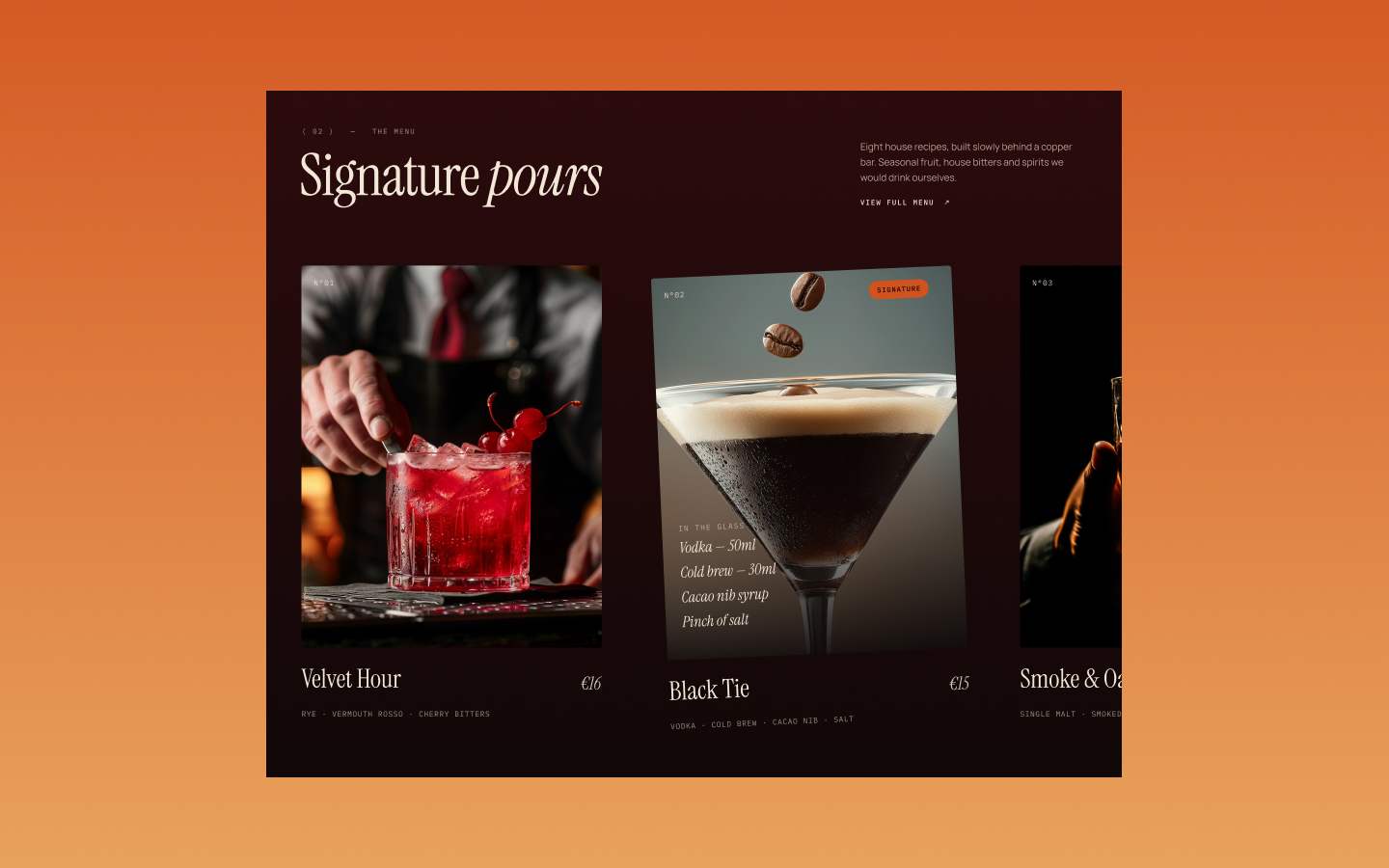
To make a Framer template preview, choose a representative page from the live template, capture the design in motion, and place the recording inside a mockup that keeps the layout visible. PreviewKit accepts a website URL or an uploaded MP4 and includes a preset for Framer 3.0 template previews, alongside social media size presets.
The preview should help someone understand the template's design. Before choosing a background, decide what the viewer needs to see: the homepage style, a distinctive page, or an interaction that a screenshot cannot explain.
A screenshot can show typography, color, and composition. A recording can also show how a page changes as someone moves through it. Use that difference deliberately.
For a photography template, a gallery transition could be the most useful thing to show. For a studio template, the relationship between the hero and the project grid might tell the story. For a text-heavy consulting template, a still preview might already explain the design well.
These are editorial choices, not a claim that every template needs a video. Choose the format that makes the template easiest to understand.
Use a page that reflects what buyers will actually receive. Check the text, images, menu, and section order before you record. Avoid making a separate promotional composition that suggests the template includes layouts it does not contain.
Open the page and inspect the specific details you intend to show. If the post focuses on a mobile layout, record that layout. Placing a desktop recording inside a phone-shaped presentation does not demonstrate a responsive implementation.
For a broad page overview, paste the live template URL into PreviewKit. For a particular hover, click sequence, or controlled scroll, make your own MP4 and upload it. Review the resulting footage before choosing a scene.
PreviewKit includes a preset specifically for the Framer 3.0 template size. Use it as a starting point when preparing that asset, and review the finished composition at the selected size.
A size preset handles the presentation dimensions. It does not guarantee marketplace acceptance or replace checking the current submission requirements in Framer. Keep the final file consistent with the asset type you are uploading.
For a social post, select the appropriate social media preset separately. A marketplace asset and a vertical social post have different jobs, so give each composition its own review.
Choose from PreviewKit's 34 device and website mockups according to the design. A scene with a strong perspective may suit a template with large imagery. A more direct view can make typography and page structure easier to inspect.
Check the smallest detail you actually need the viewer to understand. If your post is about the project cards, those cards should be visible without the viewer having to enlarge the image.
Use a background that supports the template's palette. You do not need to match every color. A quieter setting often gives a detailed template more room to speak for itself. See our website video mockup guide for choosing a frame and background.
One template can support several useful posts without repeating the same announcement. For example:
Create and export each asset individually. PreviewKit does not currently offer multi-export. It also does not save projects between sessions, so finish and download your exports before refreshing the page.
Name the template, describe who it is designed for, and point to the detail shown in the preview. For example: “A portfolio template for photographers. This preview shows the homepage gallery and how it leads into individual projects.” Use that wording only if it accurately describes your template.
Give the viewer a clear next step, such as visiting the live demo. The preview introduces the work; the demo lets them inspect it.
For the broader sharing process, read how to showcase a finished website. When your template is ready, create its preview in PreviewKit.
Powerful, self-serve product and growth analytics to help you convert, engage.

Let's bring your vision to life with standout design and expert development. Reach out to start building something exceptional together!